Aila for Zoom
For Admins & Managers: Go to Settings → Connections in your Aila dashboard
For Users: Go to Go to Settings → Personal Seetings in your Aila dashboard
Click Connect and choose Auto-record your meetings
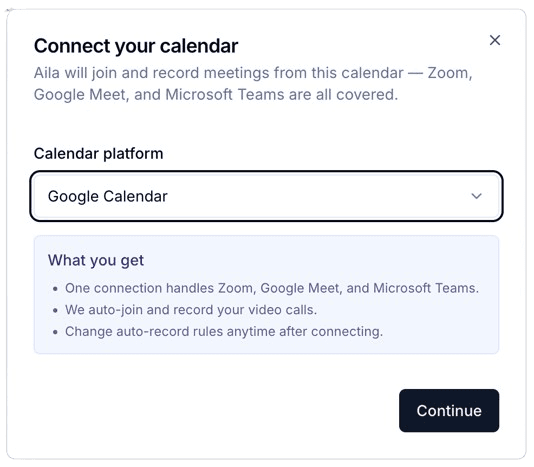
Choose to connect your Google and/or Outlook Calendar, then authorize Aila
Optional: press the button and configure which meetings Aila can join
Prerequisites:
Active Aila account
Google Calendar and/or Outlook Calendar
Zoom account with host permissions

Scheduled Meetings
Aila syncs your calendar to detect upcoming Zoom meetings
1 minute before the scheduled time, Aila's bot joins the meeting
You must grant recording permission when Zoom prompts you
Call is recorded, transcribed, and analyzed
Recording appears in your Aila Calls page within minutes
Ad-hoc Meetings
In Zoom, click Meeting then Copy Invite Link
In Aila, click "Invite Aila" in the Aila header and paste your Zoom meeting URL
Note: a calendar connection is required
Features
Automatic recording of scheduled Zoom meetings
AI transcription and call analysis
Searchable call library with AI insights
Call coaching and quality metrics
Important Notes
Host approval: If you have Zoom's waiting room enabled, you must admit the Aila bot
Recording permission: You must click "Allow" when Zoom asks to grant recording permission
Troubleshooting: If connection fails, ensure you're logged into both Aila and Zoom, then retry.
Contact support@aila.fyi if issues persist.

For Admins & Managers: Go to Settings → Connections in your Aila dashboard
For Users: Go to Go to Settings → Personal Seetings in your Aila dashboard
Find your calendar connection(s)
Click the button for each connection
Zoom access revoked: Aila's permissions to your Zoom account are removed
New recordings stop: Aila will no longer join your Zoom meetings
Existing data: Previously recorded calls remain in your Aila account
Data deletion: To delete recordings, submit a request to privacy@aila.fyi